Calculator function equivalents in Excel

Calculator function equivalents in Excel

200 level, Excel
[wp_ad_camp_1] [wp_ad_camp_4] Excel calculator functions I took a look at a basic scientific calculator I had in a drawer and I thought it might be interesting to show how each of the buttons on the calculator would work in Excel. So below is my simple inventory of the scientific calculator functions and their equivalent functions in Excel. In the examples below, just assume that the value of “x” is in cell A1. Calculator function list Inverse function $latex x^{-1}$ Excel formula(s) Each of the formulas below achieves the same thing in Excel. =1/A1   =A1^-1 Trig functions $latex sin(x)$ $latex cos(x)$ $latex tan(x)$ $latex sin^{-1}(x)$ $latex cos^{-1}(x)$ $latex tan^{-1}(x)$ Excel formula(s) Each of the formulas below achieves the same thing in Excel as the corresponding calculator button above. =SIN(A1)  …

Read More
How to convert text to number values in Excel

How to convert text to number values in Excel

200 level, Excel
[wp_ad_camp_1] [wp_ad_camp_4] In Excel, if you have text that represents a number that is not recognized as a number value some Excel formulas may not work correctly. In order to convert a text number into a number value you have a few options. Convert text to number First, you can just multiply the value by 1. This will force the conversion of the text into a numerical value and return the equivalent numerical value. =A1*1 Next, you can use the VALUE formula. You wind up with the same result. =VALUE(A1) Convert Roman Numeral text to number If your text is a Roman Numeral you can convert that to an equivalent numerical value (in decimal). Excel 2013 introduces a function called ARABIC that will convert roman numerals into decimal value equivalents.…
Read More
How to get the formula of a cell in Excel

How to get the formula of a cell in Excel

200 level, Excel
[wp_ad_camp_1] [wp_ad_camp_4] How to get the formula in a cell To get the formula in a cell, the FORMULATEXT function was introduced in Excel 2013. It's as simple as the following. Just reference the cell with the formula you're interested in. =FORMULATEXT(A1) Need to do the same, but in older versions of Excel? If you need to get the formula in a cell in Excel 2003, 2007 or 2010 you can use the pwrFORMULATEXT function. pwrFORUMLATEXT is available in an Excel addin you can download from the link below. You use it the same way as the new function in 2013. =pwrFORMULATEXT(A1) Get the free addin Overall, there are about 50 new worksheet functions in Excel 2013. The addin linked below adds 46 of the 50 functions so your legacy version…
Read More
Create a trip calculator with Excel and web services

Create a trip calculator with Excel and web services

300 level, Excel
[wp_ad_camp_1] [wp_ad_camp_4] Using Excel, you can create a trip calculator that uses web services to provide dynamic information that is up to date. I created this post after reading a post with a similar theme from Glen Gilchrist. In the example below, you'll see that you can create the trip calculator using Excel functions and without needing to write any code. Note: The illustrations below will work with Excel versions 2003 - 2010 by installing the Excel PowerUps Premium Suite. If you have Excel 2013, you can create this trip calculator without the add-in -- just remove the "pwr" prefix from the function names in the examples below. Excel 2013 already has built in WEBSERVICE and FILTERXML functions! Here's the gist of how we'll put this together For the calculator,…
Read More

Print Column Headings on Every Page in Excel

100 level, Excel
Print column headings on every page in Excel so that every page printed has the labels at the top of the columns. This will save a bunch of flipping back and forth to keep track of what you are reading on subsequent pages. The few steps below are specifically for Excel 2010, but they’ll general apply to your version of Excel too. The key is to get to the Page Setup dialog box where you will specify which row contains your column headings. How to print column headings on every page in Excel 2010 In Excel 2010, go to the Page Layout tab and click Print Titles. This is in the Page Setup group on the ribbon. Go to the Sheet tab on the Page Setup dialog box. Here, you…
Read More
How to create a resource utilization chart in Excel

How to create a resource utilization chart in Excel

300 level, Excel
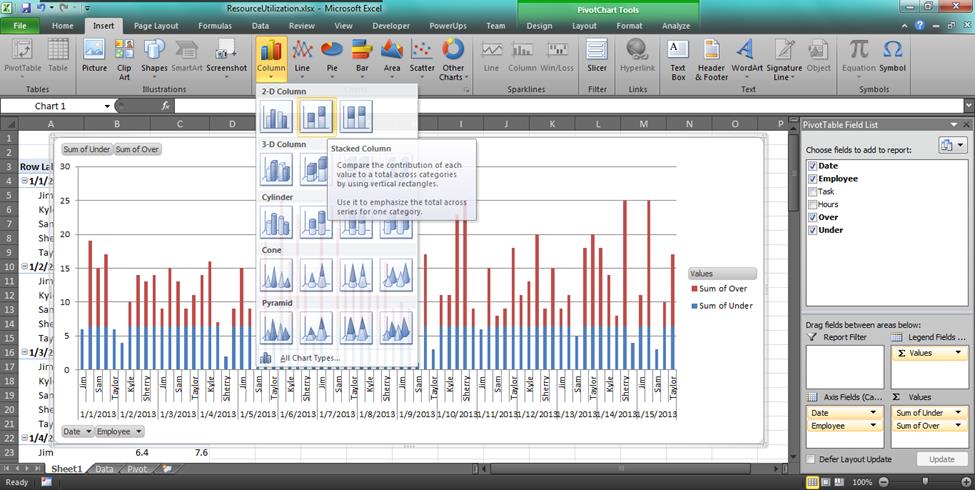
[wp_ad_camp_1] [wp_ad_camp_4] "Resource utilization charts" The name I use to refer to these charts is “resource utilization chart”. I use this name because that’s what I’ve come to know them as within Microsoft Project. They may have another, better suited name. If so feel free to note that in the comments below. Edit: Resource utilization histogram Going for a PMP certification? You'll need A Guide to the Project Management Body of Knowledge: PMBOK(R) Guide. Strategy for creating the resource utilization chart The general strategy here is to use a stacked column chart, and define a pair of calculated fields from the data that will actually be charted. I explain that more below, and use a scenario that may be similar to one of yours to help make it clear. So,…
Read More
Seamlessly install and deploy your Excel XLL add-in

Seamlessly install and deploy your Excel XLL add-in

Development, Excel, Utilities
[wp_ad_camp_1] [wp_ad_camp_4] Automatically install Excel Add-In Once you've created your Excel add-in you'll want to get it installed on your customer's instances of Excel, right? Excel add-in deployment can easily be automated using the Excel Add In Automatic Installer. As the name suggests, you can automatically install Excel add in XLLs and XLAs with this setup extension. Excel add-in deployment There are many web pages that give an overview of the steps that would need to get automated for an Excel add-in deployment - so it's doable. I spent a bunch of time culling through the advice that worked, and the advice that didn't work so well for my own Excel add-in deployment tool. I've repackaged that work into a utility that can help make your add-in get installed seamlessly. Save…
Read More
Fuzzy search in Excel to find similar text values in Excel

Fuzzy search in Excel to find similar text values in Excel

300 level, Excel
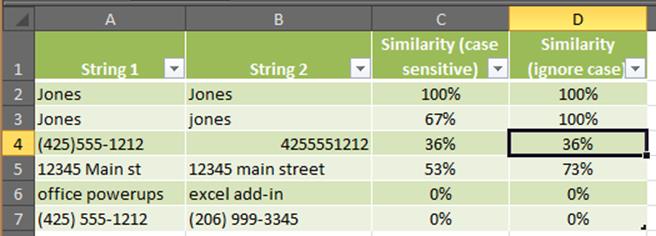
[wp_ad_camp_1] [wp_ad_camp_4] Sometimes you have a need to compare text strings that don't exactly match. You might need to match "(425)555-1212" to "4255551212" for example. Or perhaps you'd like to match "12345 Main st" to "12345 main street". The Excel PowerUps Premium Suite add-in (available as a free trial download) includes a function that helps you do just that by enabling a fuzzy search in Excel. Fuzzy Search and Replace If you want to do a fuzzy search and replace you can use the Fuzzy Find and Replace tool. You can see an example of it's use here. Fuzzy Search in Excel with a New Function for your Formulas The function is called pwrSIMILARITY. It simply compares the two text strings and returns a percentage value that represents how similar the…
Read More
How to generate a random date between two dates

How to generate a random date between two dates

300 level, Excel
How do you generate a random date between two dates? I was asked how to generate a set of random dates between two dates. At first glance, it didn't look like Excel had a function that would easily allow that. However, it turns out that using the RANDBETWEEN function is perfectly suited for this. Sample formula You will use the DATE function to specify your start and end dates for the range. Let's say you want to generate a date between January 1, 2013 and December 31, 2013. The function would look like the following. =RANDBETWEEN(DATE(2013,1,1),DATE(2013,12,31)) How does this work? This works because the DATE function returns a number that represents the date value in Excel. Then RANDBETWEEN generates a random number between those two date values (or numbers). The…
Read More

How to use Excel’s conditional formatting feature to detect potential typos

100 level, Excel
Do you need to quickly identify values that are unique from a list within Excel? One reason for uniqueness of a value may be it's misspelled or there has been an entry or typographic error on the data. Excel makes it really easy with its conditional formatting feature. It takes just a few clicks. First, just highlight the values that you want to detect unique values, possibly misspellings or typos in. Next, click Conditional Formatting up in the ribbon. Then click Highlight Cells Rules, then click Duplicate Values. Change the value "Duplicate" to "Unique" in the dialog box that pops up next. Then click OK. Voila -- the unique values in your list are highlighted for you. There you go.
Read More